Friday, May 1, 2015

Tips from a Digital Mom

When I found out I was having twins a year or so ago, I was pretty worried. How could I possibly manage 2 babies, a three-year old, a dog, and a "I like to start companies and not hold down a 9-to-5 job" husband -- all while managing my own full-time job? This phase certainly started out rockily (mostly for our dog, Tobey, whom I consistently forgot to feed; he's fine, though, just a little hungry now and then). It turns out that Google actually offered much of what helped me survive. Well, Google and that great book about getting your kids to sleep through the night. So now, almost a year later, I have a few tips to share with other folks looking to find that balance between work and family - craziness and sanity - caffeine and a good night's rest - potty training and conference calls.

Without further ado, here's my first "Digital Mom" tip: keeping in sync with your spouse.

Sometimes when you get home from work and the kids are hollering about dinner, babies needing a change, and you just have time to kick off your shoes and throw something in the microwave, you don't really get a chance to talk to your spouse. In my case, with twins and a 3-year old, it can be days before I actually get a chance to ask him how he's feeling or what he's been doing. That's where Gmail chat comes in. Both my husband and I are on Gmail (his company uses it as a part of Google Apps and, of course, so does mine). So even if I fall asleep within minutes of wrestling my son into bed, at least my husband has already heard about how I'm feeling throughout the day. With a little :-) and a little <3 data-blogger-escaped-a="" data-blogger-escaped-br="" data-blogger-escaped-connected.="" data-blogger-escaped-for="" data-blogger-escaped-it="" data-blogger-escaped-s="" data-blogger-escaped-stay="" data-blogger-escaped-to="" data-blogger-escaped-us="" data-blogger-escaped-way="" data-blogger-escaped-wonderful="">
Keep an eye on the Gmail blog for my tips, and I'd love to see yours. Send your own work-life balance suggestions to digitalmomtips@gmail.com and I'll share them here.

Hyperpolyglotic Gmail

According to Wikipedia, the world’s most accomplished hyperpolyglot is Ziad Fazah. This guy can readily communicate in 58 (f-i-f-t-y e-i-g-h-t) languages. Wow.

Well Mr. Fazah, while we’re not quite up to your standard yet, you better watch out -- because Gmail is now available in 41 languages, and don’t think we’re going to stop there.

If you’re multilingual, feeling adventurous, or if you just want to test how well you know the Gmail user interface, try changing your account language settings. Sound a little risky? Don't worry - it's easy. You can change the language through the Settings menu. Get a taste of what hyperpolyglotic Gmail has to offer:


How many of these language UIs do you recognize?

Have a date with your favorite stock

Want to know how your favorite stock is doing each day? Now you can! Google Calendar and Google Finance have teamed up to provide daily stock quotes.

Try searching for your favorite stock symbol in Calendar:


You will then be able to able to see the close price as an event each day.

Gmail-ganization

You can find labels on the left side of the Gmail window. Labels let you group together emails any way you choose. They also provide an added benefit called multiple inclusion. And that means you can associate a single message with as many labels as you want.

So how does this help you? Let's say you get lots of mail about Xena (you know, the Warrior Princess), and you also get lots of mail from friends. In most mail applications, you could put all messages about Xena in a "Xena" folder and all mail from friends in a "Friends" folder. But when a friend sends you a note about Xena -- well, you could make "Xena" a subfolder of "Friends," which doesn't totally make sense. You could make "Friends" a subfolder of "Xena?" Or maybe make a copy of the mail and put it into both? Sure, if you want to keep track of both, take up twice the space, and forget to delete one if you ever delete the other. Blah!

Now let's say you have Gmail labels. If you get a Xena mail from a friend, just apply the label "Xena" and the label "Friends". Now you can find it in "Xena," you can find it in "Friends" -- and you only have to keep track of one thing.

If you don't get the Xena thing, replace "Xena" with "Buffy". If you still don't get it, replace it with "Britney" or, if all else fails, replace it with "Work." And there you have it.

Top 10 little-known Gmail features (Part 1)

Gmail has a bunch of lesser-known feature that can end up being very useful once you get to know them. I've put together a list of my top 10 favorite features that you may or may not be familiar with. Here are the first five; watch for the second batch sometime next week.

10. Custom "from"
Most people end up managing more than one email account -- some are personal, others might be for work or school. When I graduated from college, I wanted to keep my .edu address for alumni-related things, but made Gmail my primary personal address. My university made it easy to forward my .edu mail to my Gmail address, so I could read all my mail from my within my Gmail account. I was happy to find out that Gmail would actually let me send mail "as" my .edu address, so I could continue to keep that identity, while managing all my email from one place. Here's how to set that up.

9. Open attachments in Google Docs & Spreadsheets, or view as slideshow
If you are sending a Word document or Excel file as an attachment, Gmail lets you easily open it in Google Docs & Spreadsheets. (In case you're not familiar with Google Docs & Spreadsheets, it's our online word processor and spreadsheet application, which lets you store and access documents online and collaborate on them with anyone.) Since other people are working on many of the docs I receive as attachments collaboratively, it's really easy to just open them in Docs & Spreadsheets and create a single document to work from, rather than constantly sending versions of documents back and forth. If the attachment is a PowerPoint presentation, Gmail will recognize this and give you a link to"View as a slideshow." This will open a window with a Flash preview of the slides. This is great for quickly reviewing slides in the browser.


8. Gmail gadget for iGoogleI use iGoogle to bring together a lot of the information I care about on the web (feeds, my Google Calendar, YouTube videos, etc). I use it as a dashboard at the start of my day to get an overview of what's going on in the world. I've added the Gmail gadget to my page to get a preview of my Inbox, which is great because it's one of the first things I'm interested in seeing.

7. Reply by chat

Most people know that you can chat with your contacts in Gmail if they're using Gmail too. But there are some subtle features that make chat particularly useful in the context of using your email, like replying by chat. If you've received an email and notice that the sender is online (by seeing the little green dot next to his or her name in the conversation), you can click the button "reply by chat." What's particularly convenient about this is that the chat will be archived as part of the email thread to which you replied. I like this most because it means when I search for anything related to that thread, I find the chat transcript alongside all the relevant email messages.


6. Gmail for mobile application
It wasn't that long ago that my cellphone could barely handle sending text messages. I didn't used to think of it as being an efficient place to access my email. That's changed -- big time. Email has become one of my primary forms of communication when on the go. Unfortunately, on a lot of phones, dealing with email can still be a pretty annoying experience, especially if you're not using a device like a PDA. Enter Gmail for mobile. It's fast, it syncs with your online account, and it gives you virtually all of the same Gmail functionality like search, filters, and access to your whole archive of mail.

Next week: another 5 for you.

Saturday, February 14, 2015

Help make a Gmail video

Do you have mad video-making skills? OK, how about just a video camera and a little bit of spare time to get creative? A few of us on the Gmail team came up with an idea to stitch together a bunch of video clips that all share one element: someone hands the Gmail M-velope in from the left of the screen, and hands it off to the right. Put them all together, and they form one long chain of hand-offs. We thought it would be fun to let everyone in on the action. Just go to http://mail.google.com/mvideo, where you'll find directions on how to submit your clip (including a PDF of the Gmail M-velope you can use in your video). We'll be accepting clips until August 13th. We'll then take a selection of the submitted clips and edit them together into one final video, which we'll release to the world on August 20th.

What does this have to do with email, you may ask? Well, you can see this as a symbol of how email connects people from all over, making the world feel a bit smaller. Or you could think of it as a metaphor for mail exchange servers, Simple Mail Transfer Protocol (SMTP), and all of the technical steps involved in getting a Gmail message around the world from one inbox to another. But, really, we just wanted to have a little fun. So give it a shot, and enjoy! Remember, clips are due before August 13th. :-)

Thanks for all the spam reports

For all you Gmail users hitting those "Report Spam" and "Not Spam" buttons, thanks a ton! We hear from a lot of users that they love how well Gmail blocks spam, and the only reason it works is because you all report it to us. If you're not in the habit of doing this, I hope I can convince you to start. Here are three reasons you should report spam:

Reason #1: It helps you personally. It gets the spam out of your Inbox and keeps what is truly spam separate from any non-spam messages you just want to delete. We keep statistics on which senders you've flagged as spammers (and which you've marked as non-spammers), and we use this information to provide you a better, personalized Gmail spam filter that overrides the system-wide filter when appropriate.

Reason #2: It helps the Gmail community at large (this includes you!). When you report spam, we compute all kinds of interesting things about the spammy message you reported and combine it with the information that other users are reporting about the same message or sender. When our automated system sees a lot of people marking a particular email as spam, it starts blocking similar emails pretty quickly.

Reason #3: It lets us know when we need to do more development. We surround ourselves with monitors displaying the current spam situation on all kinds of nice charts and tickers. When a spammer figures out how to bypass our system, lots of spam reports start flowing in, and we see that pretty much immediately. We react as quickly as we can to these events, developing and testing new code. Usually we can address these in a few hours, but sometimes this can take a few days or weeks to get right. Please don't give up reporting the spam, though. We love and depend on the reminders: they keep us on our toes!

Sometimes people are afraid to report a message because they aren't sure if it is "really" spam or not. Our opinion is that if you didn't ask for it and you don't want it, it's spam to you, and it should be reported. We'll sort it out on our side. We aren't perfect, but in general it works because you tell us when it doesn't!

So if you see a spam message in your inbox, remember to select it and click the "Report Spam" button at the top of the page. And if we put messages in your spam folder that don't belong there, be sure to hit the "Not Spam" button on those too.

Thanks again for your help!

Win this competition and the shirt off our backs. Literally.

James Surowiecki opens his book The Wisdom of Crowds with the example of Francis Galton, a famous statistician, who asked individuals to guess the weight of an ox. After collecting all the guesses, he came to a startling conclusion. Most of the people were wrong. However, if you took the median of all guesses, the group was closer to the true weight than even the best cattle experts.

After reading his book, I've become more interested in the power of communities. That's why, when tasked with creating the ultimate Gmail T-shirt design, I decided to turn to the wisdom of the crowds: you, our creative and tech-savvy Gmail users. Starting today you can submit a design that you think embodies the Gmail personality most. Also, you'll be able score designs and let us know the designs that you think have the most potential (think: not ox weight, but T-shirt awesomeness).

We've teamed up with Threadless.com which does this sort of thing all the time. Threadless.com is a site where anyone can submit designs that they'd like to see appear on a T-shirt, people vote, and a small number of winners are printed and sold online. Today, Gmail and Threadless launched a competition created specifically for Gmail with the theme "Connect!" To make it even more interesting, we're giving away an 8GB iPhone, a Jawbone Bluetooth headset, a $400 gift certificate from JetBlue Airlines, some fun Google schwag, and a whole bunch of moolah to the winning designer. So go ahead and pull out your Moleskine notebook, sharpen those No. 2 pencils, and submit away. The contest opens today, and will close at 11:59:59pm CST on August 16th.

Remember that I'll be looking to all of you to help grade the designs. In a way, I trust your judgment more than mine. After all, I once tried to launch Gmail Paper.

Manage multiple accounts with Mail Fetcher

As a member of the Gmail support team, I get to read testimonials from people about why they love Gmail. Many of you have lamented the fact that your work, school, and other email accounts aren’t more like Gmail. Why can't all my messages magically appear in my Gmail account? Well, we can't do magic, but we do offer free POP-in access with Mail Fetcher.

Mail Fetcher lets you retrieve messages from up to five different email accounts. Besides taking advantage of Gmail’s spam filtering, you can also use Gmail to send messages using your other email addresses. This is convenient for users juggling multiple accounts -- log in once from anywhere and access all of your messages from different email accounts (without missing a single Gmail chat). To enable Mail Fetcher, simply click "Settings," select the "Accounts" tab, click "Add another mail account" and specify your settings.

Just note that the account you're fetching from must have POP3 access. Some providers, including Yahoo! Mail and Hotmail, don’t provide free POP3 access, but many ISP email services do. For more information on Mail Fetcher, you can visit the Gmail Help Center.

SMS to update your Google Calendar

People request new features for Google Calendar all the time. They post to blogs, send email to our support team, call to me on the street, etc. One thing people always ask me about is better mobile access. You can already send a text message to "GOOGL" with a search query, and you'll get a text message reply with the top Google search result. Some folks want a similar service for Google Calendar, where they can send text messages to add events to their calendar or find out what events they have coming up. This is by far my favorite request -- not only because I think it's a great feature, but because it already exists.

Here's how it works: send a text message to "GVENT" (48368) with information about an event, like "3pm cappuccino at Borrone's," and this event will be added to your calendar. Just like the "Quick Add" feature in Google Calendar, GVENT will pop the event into your calendar in the right place. You'll get a text message back confirming the details of your event. Or, send the word "day" to "GVENT" to get a text message response containing all of your scheduled events for today, "next" for your next scheduled event, or "nday" for all your events scheduled for tomorrow. You can learn more about GVENT in the help center.

Tuesday, May 22, 2012

Improved search in Gmail

When we built Gmail, we wanted to bring that same great search experience Google is known for to email. And today, we are making that experience even better by improving the autocomplete predictions you see when you search in Gmail.

Now when you type something into the Gmail search box, the autocomplete predictions will be tailored to the content in your email, so you can save time and get the information you want faster than ever before. For example, you might now get lax reservation or lax united as predictions after typing "lax" if you have received an email with a flight confirmation for your trip to Los Angeles in your inbox recently.


We will be rolling out improved autocomplete in English over the next few days and will follow with more languages over the next few months. While initially improved autocomplete will not be available for Google Apps customers, we plan to bring this feature to Apps domains in the future.

Friday, May 18, 2012

Continuing to bring people front and center in Gmail

Email is more than just messages going back and forth -- it's also about the people sending them. That's why today we're introducing changes that continue to bring people front and center in Gmail, just as we did with profile photos in conversation view, the people widget and last year's integrations with Google+. Today’s changes include quick access to contact details when viewing past conversations as well as improved integration with Google+ circles.

Quick access to contact details
When you search for an email address, the search results will now show you contact details in addition to that person's profile photo and the emails sent from and to them. From here, you can start a chat, call their phone and more. Plus, if your contacts have a Google+ profile, this information will stay up to date automatically.


You can get to these same results in a variety of ways including from the people widget, contacts and the chat list search menu.

Improved circle integration and circle search
In addition to adding contact details to search results, we've made some improvements to the circles integration announced in December. When you select a circle, you'll now see profile photos of people in that circle at the top right of the page. Plus, when you click on these images you'll be taken directly to search results with contact details.


Circles are also now supported in search and filters. Find messages from a specific circle by typing circle:[circle name] in the search box. You can also find mail from any of your circled contacts by searching with has:circle. You can refine your search even further with other criteria and create filters based on circles. This means you can now view all the unread emails from your ‘Friends’ circle or automatically star every message that comes from your ‘VIP’ circle.


These updates are helping us to provide a more consistent, beautiful experience across all of our products. Quick access to contact details will be rolling out to everyone today. To take advantage of circles and more in Gmail, you'll need to join Google+.

Wednesday, May 9, 2012

A better Google+ notification experience in email

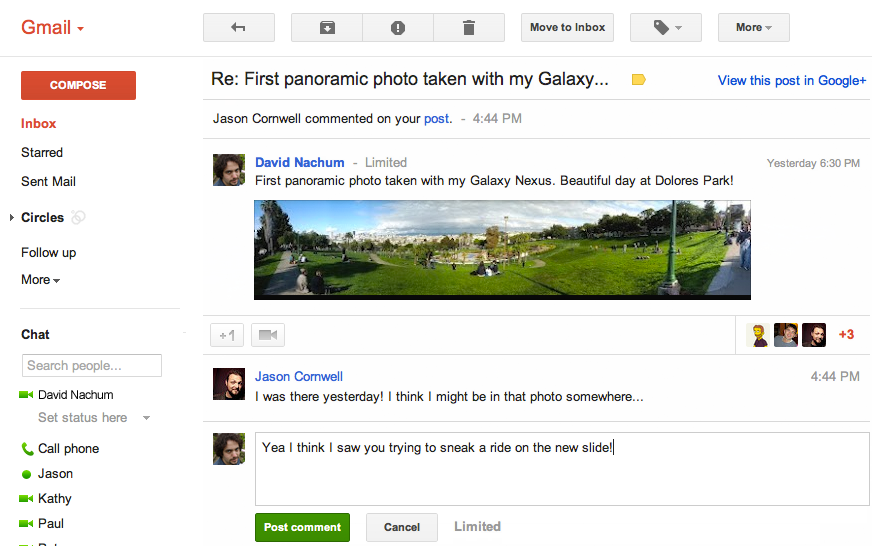
Notification emails are a great way to keep up with what's happening in the Google+ stream: whether someone mentions you, comments on your post, or shares with you directly. It's not always enough to just read these updates, however; sometimes you want to respond right away, right from your inbox. The good news is that starting today, you can reply to Google+ notifications from Gmail.

On the desktop, in addition to adding people to circles, and viewing recent Google+ content in the people widget, we're now making Google+ notification emails in Gmail completely interactive:

  • You can view, comment on, and +1 posts from inside your inbox
  • Your comments appear in the Google+ stream in real-time, and
  • Responses from others instantly appear in Gmail, as part of the notification message
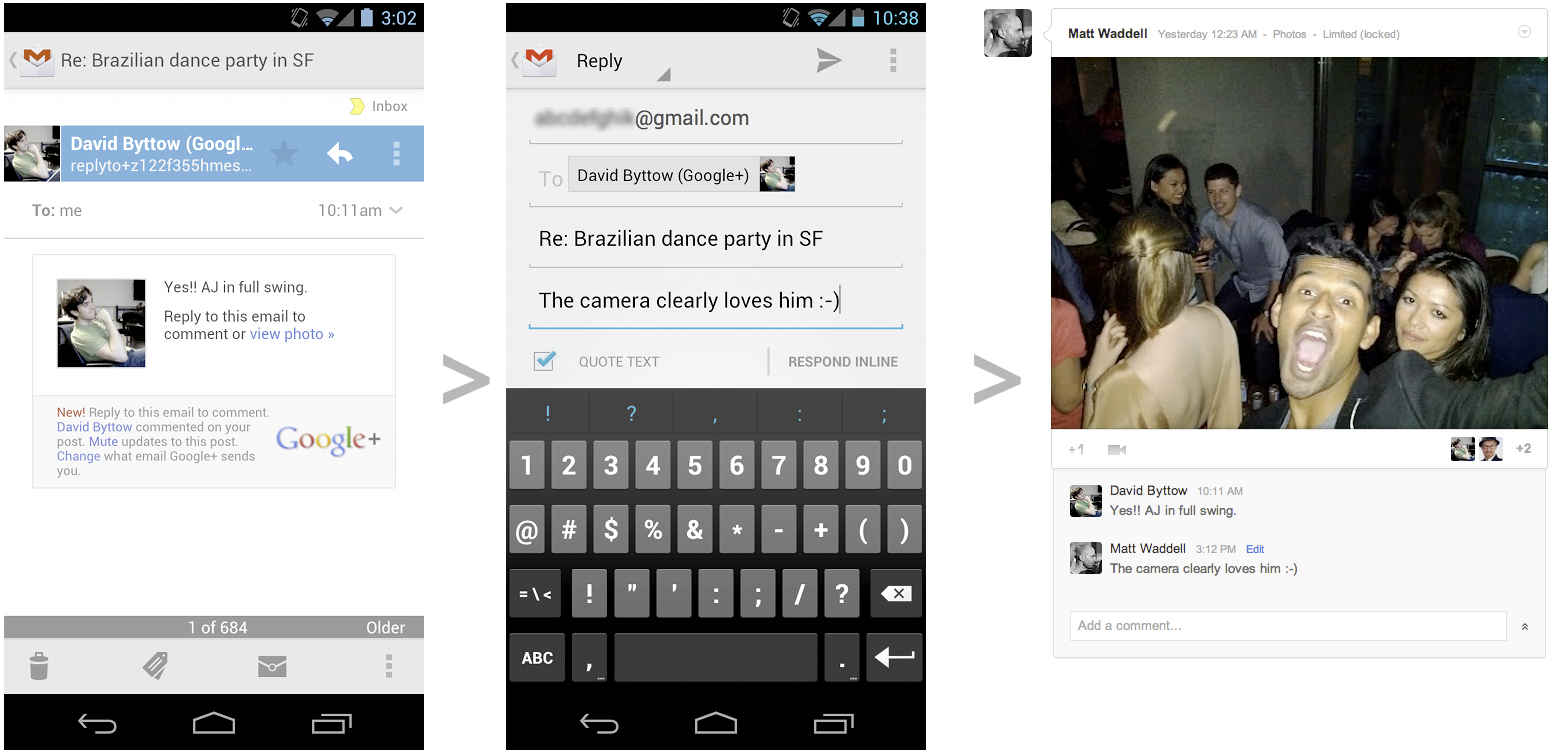
You can also reply to notifications from your mobile device (and/or POP or IMAP client). Just open the notification email about the post you're interested in, and look for the new prompt, "Reply to this email.” Tap reply, send your comment, and we'll automatically add it to the ongoing Google+ conversation. Even if you don't use Gmail, you can still reply-by-email from many different services.


From left to right: Google+ notification on the phone; replying via email; updated post in the stream

We're rolling out all of these features over the next week to users who've upgraded to Google+. In the meantime, you can adjust which Google+ notification emails you want to receive via your Google+ settings.

We’re always working to create a simpler, more intuitive experience for our users, and with today’s changes, we’re excited to take another step in this important direction.

Wednesday, May 2, 2012

Say hello (or olá or halo or salam) to automatic message translation in Gmail


We're excited to announce three Gmail Labs graduations today: Automatic Message Translation, Smart Mute and Title Tweaks.

Automatic Message Translation
Did you ever dream about a future where your communications device could transcend language with ease? Well, that day is a lot closer. Back when we launched automatic message translation in Gmail Labs, we were curious to see how people would use it.

We heard immediately from Google Apps for Business users that this was a killer feature for working with local teams across the world. Some people just wanted to easily read newsletters from abroad. Another person wrote in telling us how he set up his mom’s Gmail to translate everything into her native language, thus saving countless explanatory phone calls (he thanked us profusely). I continue to use it to participate in discussions with the global Google offices I often visit.

Since message translation was one of the most popular labs, we decided it was time to graduate from Gmail Labs and move into the real world. Over the next few days, everyone who uses Gmail will be getting the convenience of translation added to their email. The next time you receive a message in a language other than your own, just click on Translate message in the header at the top of the message,


and it will be instantly translated into your language:


If you're bi-lingual and don't need translation for that language, just click on Turn off for: [language]. Or if you'd like to automatically have messages in that language translated into your language, click Always Translate. If you accidentally turned off the message translation feature for a particular language, or don't see the Translate message header on a message, click on the down arrow next to Reply at the top-right of the message pane and select the Translate message option in the drop-down.

Title Tweaks
With the graduation of Title Tweaks, we've changed the text in the browser tab so that you can more easily see if you have new messages. The tab now reads "Inbox (20) - user@example.com - Gmail" instead of "Gmail - Inbox (20) - user@example.com.”

Smart Mute
We've made improvements to muting based on the graduation of the Smart Mute lab so you can be sure that noisy email threads stay out of your inbox. You can learn more about muting email threads in the help center.

In addition to graduating these three labs, we'll also be retiring some less popular labs over the next few days: Old Snakey, Mail Goggles, Mouse Gestures, Hide Unread Counts, Move Icon Column, Inbox Preview, Custom Date Formats and SMS in Chat gadget. Please note that the SMS in Chat lab is not being retired, just the gadget associated with it.

Wednesday, April 25, 2012

Introducing Google Drive... yes, really

Just like the Loch Ness Monster, you may have heard the rumors about Google Drive. It turns out, one of the two actually does exist.

Today, we’re introducing Google Drive—a place where you can create, share, collaborate, and keep all of your stuff. Whether you’re working with a friend on a joint research project, planning a wedding with your fiancĂ© or tracking a budget with roommates, you can do it in Drive. You can upload and access all of your files, including videos, photos, Google Docs, PDFs and beyond.


With Google Drive, you can:
  • Create and collaborate. Google Docs is built right into Google Drive, so you can work with others in real time on documents, spreadsheets and presentations. Once you choose to share content with others, you can add and reply to comments on anything (PDF, image, video file, etc.) and receive notifications when other people comment on shared items.
  • Store everything safely and access it anywhere (especially while on the go). All your stuff is just... there. You can access your stuff from anywhere—on the web, in your home, at the office, while running errands and from all of your devices. You can install Drive on your Mac or PC and can download the Drive app to your Android phone or tablet. We’re also working hard on a Drive app for your iOS devices. And regardless of platform, blind users can access Drive with a screen reader.
  • Search everything. Search by keyword and filter by file type, owner and more. Drive can even recognize text in scanned documents using Optical Character Recognition (OCR) technology. Let’s say you upload a scanned image of an old newspaper clipping. You can search for a word from the text of the actual article. We also use image recognition so that if you drag and drop photos from your Grand Canyon trip into Drive, you can later search for [grand canyon] and photos of its gorges should pop up. This technology is still in its early stages, and we expect it to get better over time.
You can get started with 5GB of storage for free—that’s enough to store the high-res photos of your trip to the Mt. Everest, scanned copies of your grandparents’ love letters or a career’s worth of business proposals, and still have space for the novel you’re working on. You can choose to upgrade to 25GB for $2.49/month, 100GB for $4.99/month or even 1TB for $49.99/month. When you upgrade to a paid account, your Gmail account storage will also expand to 25GB.

Just like the Loch Ness Monster, you may have heard the rumors about Google Drive. It turns out, one of the two actually does exist.

Today, we’re introducing Google Drive—a place where you can create, share, collaborate, and keep all of your stuff. Whether you’re working with a friend on a joint research project, planning a wedding with your fiancĂ© or tracking a budget with roommates, you can do it in Drive. You can upload and access all of your files, including videos, photos, Google Docs, PDFs and beyond.


With Google Drive, you can:
  • Create and collaborate. Google Docs is built right into Google Drive, so you can work with others in real time on documents, spreadsheets and presentations. Once you choose to share content with others, you can add and reply to comments on anything (PDF, image, video file, etc.) and receive notifications when other people comment on shared items.
  • Store everything safely and access it anywhere (especially while on the go). All your stuff is just... there. You can access your stuff from anywhere—on the web, in your home, at the office, while running errands and from all of your devices. You can install Drive on your Mac or PC and can download the Drive app to your Android phone or tablet. We’re also working hard on a Drive app for your iOS devices. And regardless of platform, blind users can access Drive with a screen reader.
  • Search everything. Search by keyword and filter by file type, owner and more. Drive can even recognize text in scanned documents using Optical Character Recognition (OCR) technology. Let’s say you upload a scanned image of an old newspaper clipping. You can search for a word from the text of the actual article. We also use image recognition so that if you drag and drop photos from your Grand Canyon trip into Drive, you can later search for [grand canyon] and photos of its gorges should pop up. This technology is still in its early stages, and we expect it to get better over time.
You can get started with 5GB of storage for free—that’s enough to store the high-res photos of your trip to the Mt. Everest, scanned copies of your grandparents’ love letters or a career’s worth of business proposals, and still have space for the novel you’re working on. You can choose to upgrade to 25GB for $2.49/month, 100GB for $4.99/month or even 1TB for $49.99/month. When you upgrade to a paid account, your Gmail account storage will also expand to 25GB.

Drive is built to work seamlessly with your overall Google experience. You can attach photos from Drive to posts in Google+, and soon you’ll be able to attach stuff from Drive directly to emails in Gmail. Drive is also an open platform, so we’re working with many third-party developers so you can do things like send faxes, edit videos and create website mockups directly from Drive. To install these apps, visit the Chrome Web Store—and look out for even more useful apps in the future.

This is just the beginning for Google Drive; there’s a lot more to come.

Get started with Drive today at drive.google.com/start—and keep looking for Nessie...

Friday, April 20, 2012

Know Your Gmail Stats using Gmail Meter

One day I was looking at how many messages I have in my sent mail, and realized there are a lot of things I wanted to know about my email habits. How much of my emails do I read, and do I reply fast enough? As luck would have it, Romain Vialard, a Google Apps Script Top Contributor, developed a tool called Gmail Meter powered by Google Apps Script.

Gmail Meter is an Apps Script which runs on the first day of every month and sends you an email containing different statistics about your Inbox. In a similar way to how recently introduced Google Account Activity gives key stats about how you’ve used your Google Account, Gmail Meter gives you different types of statistics that will help you analyze your Gmail habits.


  • Volume Statistics show you the number of important and starred messages, the number of people who sent you emails, and more. Volume statistics can be very useful in determining how you are using email efficiency tools like Priority Inbox.
  • Daily Traffic gives you an estimate of when you receive messages and when you send them during a given month. For example, in the graph below you can see how the peaks in my “Sent” curve indicates that I write emails in spurts.
  • Traffic Pattern lets you get a sense of your overall email activity over the past week.
  • Email Categories tells you how you are managing your Inbox. In the pie chart below, you can see that the majority of my emails are labeled. My Inbox is tiny compared to other labels which indicates that I keep a lean and mean Inbox.
  • Time Before First Response shows you how long it takes you to reply, and how long it takes others to reply to you. By looking at this chart, I can infer that I reply faster than others I communicate with.
  • Word Count tells you whether you are writing long emails. The example below shows that most of my emails are shorter than 200 words.
  • Thread Lengths help you understand whether you participate in long conversations resulting in long threads. Top Senders and Top Recipients help you identify who you communicate with more frequently.
How to Setup Gmail Meter
It is easy to set up Gmail Meter. First, go to Google Docs and open a Spreadsheet. Click on Tools > Script Gallery. Search for “Gmail Meter” and click Install. You will now see a new menu item called Gmail Meter on your spreadsheet. Click on Gmail Meter > Get a Report. You can then choose the type of report. Preparing a report may take some time and you will get an email once the report is ready. If you would like to know more about how this script works, be sure to check this tutorial.

Learning about my email habits has helped me become more email efficient. So, before you read that next article on "Writing Effective Emails," be sure to learn more about your own email habits using Gmail Meter.
 

Tuesday, March 20, 2012

Learn why a message ended up in your spam folder

Many of our users say the accuracy of our spam filter is one of the key reasons they love Gmail. And while we think you should never have to look in your spam folder, we know some of you may want to know why the messages there were marked as spam.

So starting today, we’ll be showing a brief explanation at the top of each of your spam messages. Simply look at any message in your spam folder and now you can find out why it was put there and learn about any potentially harmful content within the message.

We hope that this is not only interesting, but also helps you learn about scams and other harmful messages that Gmail filters out. Whether you prefer to leave your spam folder untouched or do some educational digging, the information will be there for you. And if you're interested in learning more, check out our new series of spam articles in the Gmail help center.

Thursday, March 15, 2012

Star and label messages before you send them

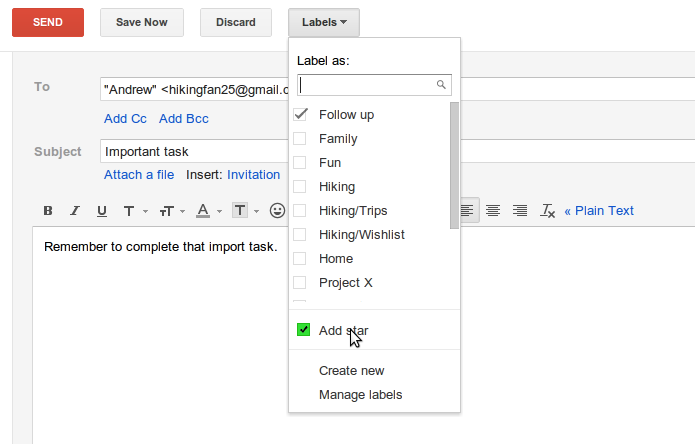
Have you ever sent an important email that you wanted to follow up on, but a couple days later realized you hadn’t? Starting today, you can organize your messages before sending them by starring them or adding a label, making it easy to keep track of your sent messages.

When composing a new message, you can assign labels or star it by using the labels drop-down menu. As you’d expect, recipients of messages organized this way won’t see your labels or stars.


The Gmail Forum’s new look and first 100k poster

The Gmail Forum is a place where you can discuss Gmail, get advice, and help each other out. Recently, we've celebrated two major events.

First forum poster to hit 100,000 answers

Everyone needs a little help occasionally, and many of us get a warm, fuzzy feeling when we’re able to provide assistance to someone in need. Brett, or “bkc56” on the forum, has helped so many people he must be on fire! The Gmail team is thrilled to congratulate Brett on becoming the first person to post 100,000 answers in any of our forums.

To celebrate, we invited Brett to come by the Google offices in Mountain View for lunch and a day with the team. While he was here, Brett shared his insights on Gmail, the forum, and the Gmail community; those he met with described his observations as “brilliant” and “invaluable.” He met with Googlers in many different roles, from support specialists and engineers to vice presidents. We learned a lot from speaking with Brett and we are all very grateful that he shared his time with us.

Lunch with the team: Emmanuel, VP; Alex, Product Manager; Mark, Director;
Brett, Top Contributor; Dave, VP; Sarah, Community Manager

Brett is one of our Top Contributors, the forum volunteers who are especially knowledgeable and helpful. Remember to say “thanks” if you see them around the forum. Want to lend a hand yourself? Brett suggests “Find a question where you know the answer and post it. Everyone starts with just one helpful post. Perhaps you'll enjoy it and do another, and another, and...”

Launch of the new forum interface
Right on the heels of Brett’s achievement, we launched a new interface for the Gmail Forum, powered by Google Groups. The update brings new features, including “me too” voting, rich text posts and editing, and easy sharing on Google+. Stop by and check it out, whether you have a question or just want to chat.


Tuesday, February 28, 2012

Open email links directly in Gmail using Chrome

I used to avoid clicking on email links on the web because an application on my computer that I never used would pop up and interrupt me. Instead, I would copy the email address, switch to Gmail, click compose and paste it in.

Starting today, thanks to the magic of HTML5 things are getting simpler. Now, when you go to Gmail in Chrome, you will be asked if you want Gmail to open all email links. Say yes, and clicking on email links in any application on your computer will open a fresh Gmail compose window.


You can set Gmail as your default mail client in Firefox and Internet Explorer, too.